
Gain Insights. Engage Users. Grow Sales.
Settings
Where to Find the AI Display Settings
AI Display can be found within the AI Editor. If you have not already done so, please create your AI. Follow these directions to customize the AI:
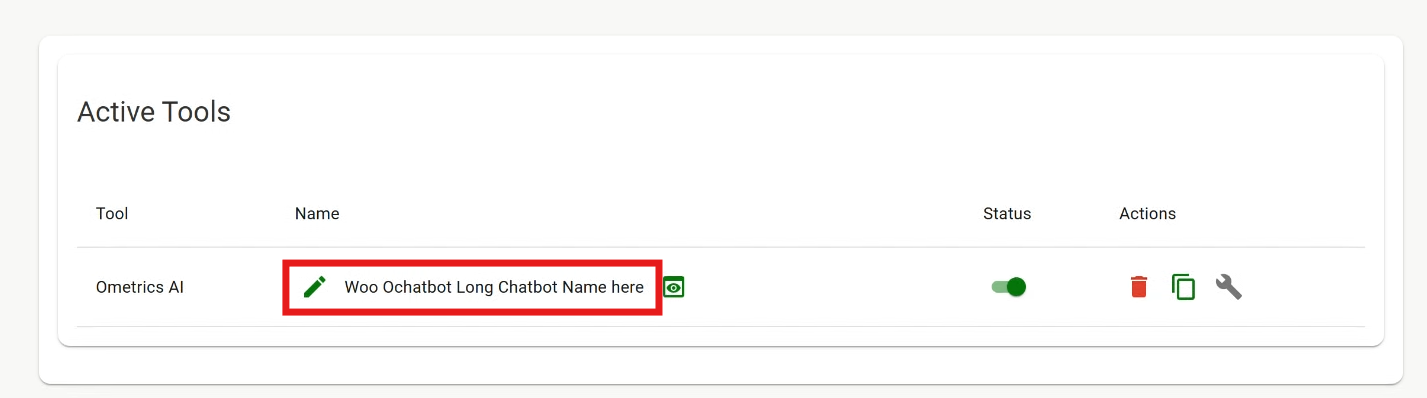
1. Once your AI is created, you can access the editor by clicking on the name in the dashboard.
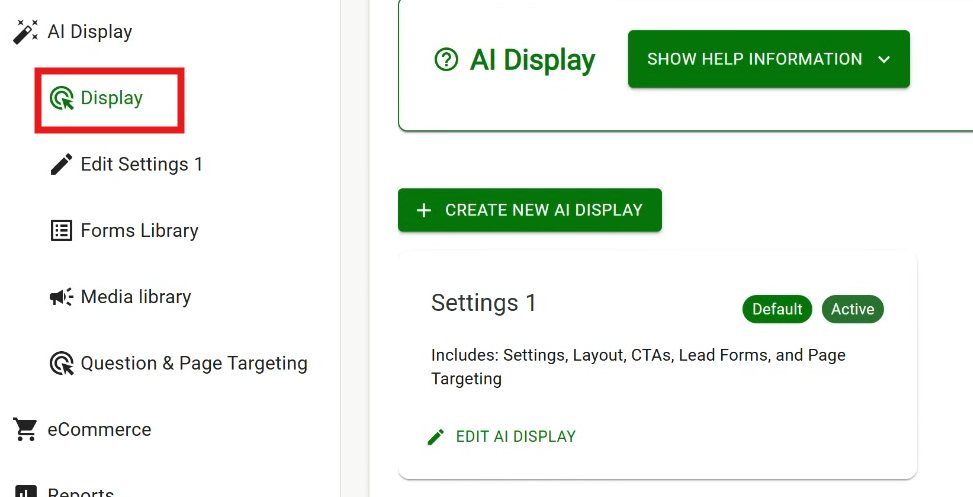
2. In the editor, head to the Display. Click on Edit AI Display or + Create New AI Display to open the settings.
3. On this screen, you can configure basic settings for the widget.
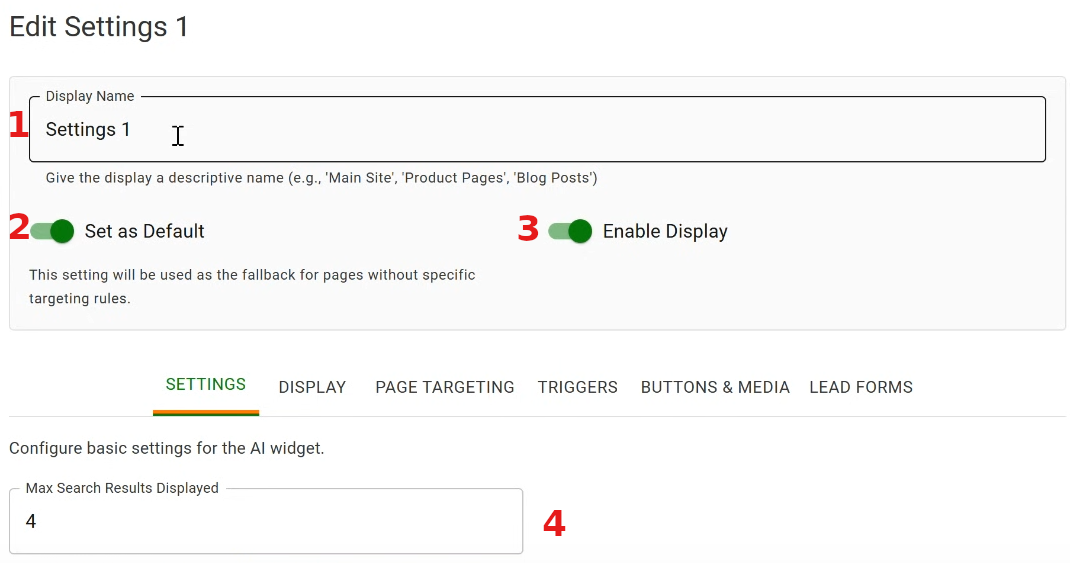
1. Give the display a descriptive name. This will only be visible to use.
2. Set as Default: Toggling this on will enable this specific display to appear on all webpages without specific targeting rules.
3. Enable Display: Turn this on to activate the AI Display on your site. When disabled, the widget will be hidden from users, but your settings will remain saved.
4. Max Search Results Displayed: Set how many results the AI should return when users search. Default is 4.
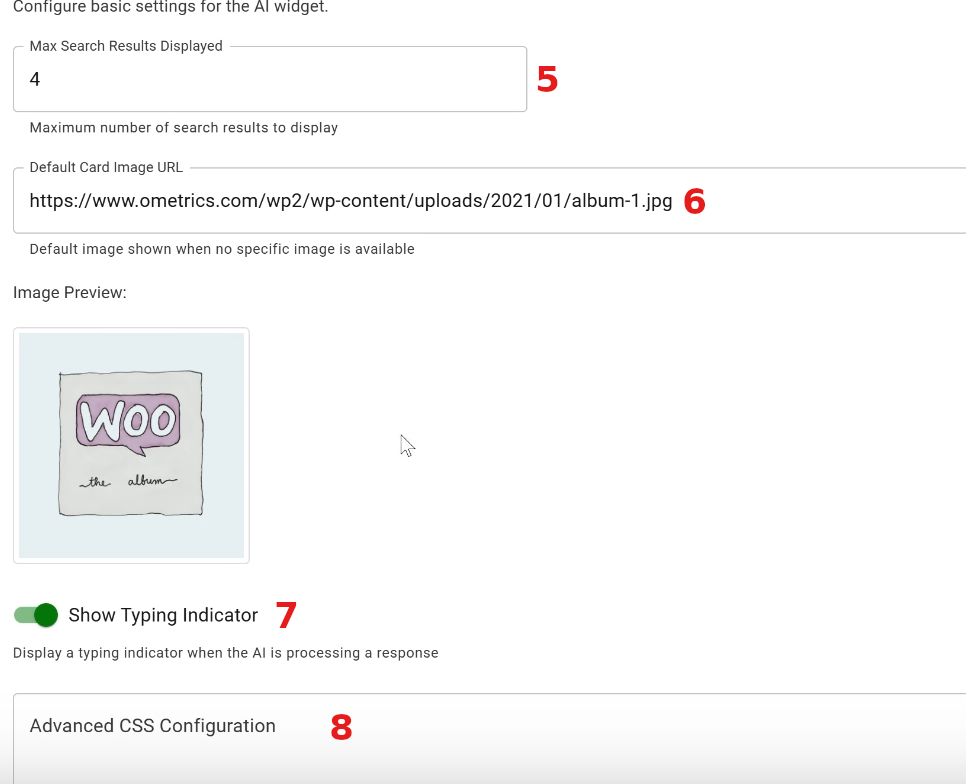
5. Give the display a descriptive name. This will only be visible to use.
6. Default Card Image URL: Provide a URL for a fallback image. This will be shown if a page or product doesn’t have its own image.
7. Show Typing Indicator: When toggled on, users will see a “typing…” animation as the AI prepares a response. This adds a more natural, conversational feel.
8. Custom CSS: Add any custom CSS here to fully control the look and feel of the AI widget. This will apply only to the AI interface.