
Gain Insights. Engage Users. Grow Sales.
How to add team members to Ochatbot
You can give each colleague or client their own Ochatbot login, with a role that sets what they can see and change. Access can also be limited to specific sites on your account.
This guide covers inviting a team member, choosing a role, adjusting permissions and sites, and keeping access secure.
Before you begin
You need team-management rights (an Admin or the account owner) to invite people. Have each person’s email address and name ready, and decide which role and sites they should get.
| Role | Edit AI settings and Ochatbot tools | Turn tools on or off | Manage team members | View AI settings, reports, and chat history |
|---|---|---|---|---|
| Admin | Yes | Yes | Yes | Yes |
| Editor | Yes | Yes | No | Yes |
| Viewer | No | No | No | Yes |
In short: Admins make changes and manage the team, Editors make changes but can’t touch the team, and Viewers are read-only.
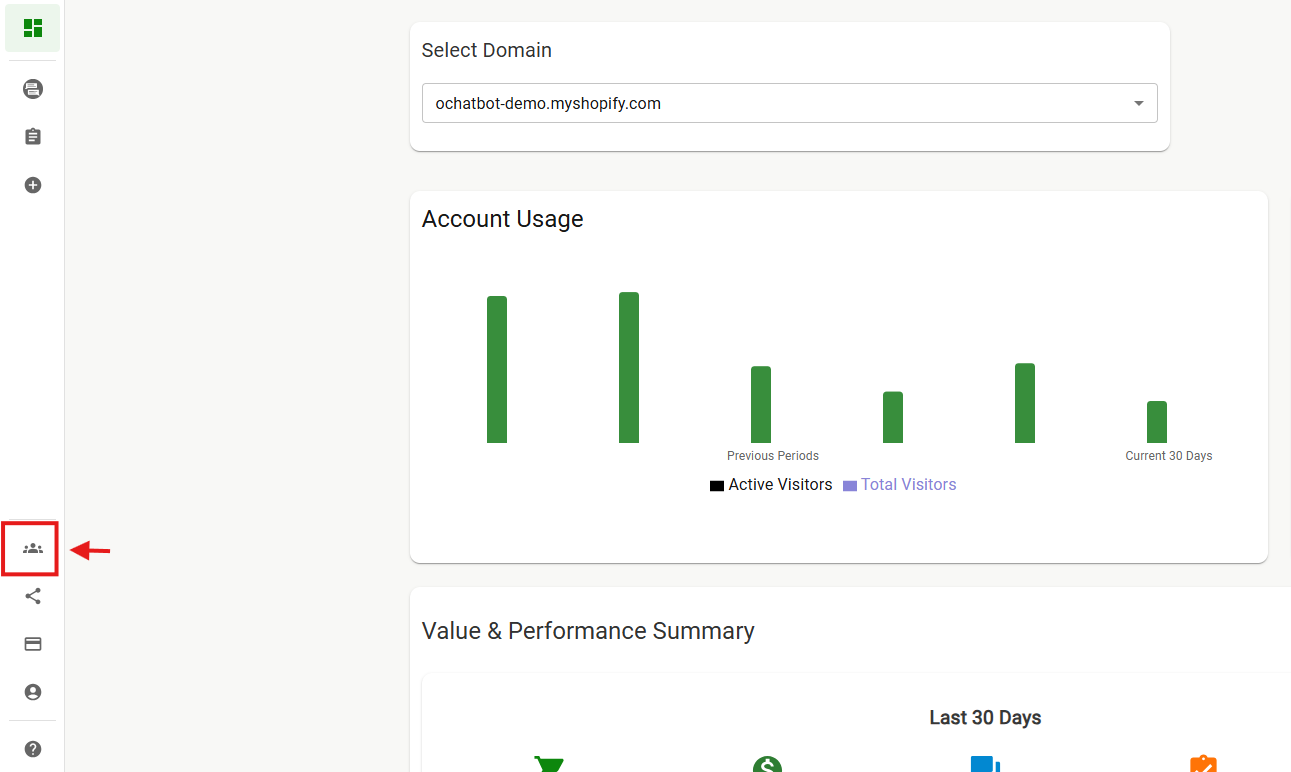
In your chatbot dashboard, click the Team icon in the bottom-left corner of the screen. The Team page opens on the Members tab.
Invite a team member
- Under Invite a team member, enter the person’s Email and Name.
- Open the Role menu and pick Admin, Editor or Viewer. Permissions and sites start from that role’s defaults.
- Under Permissions, tick or untick specific access for this person, such as Chat history, Form submissions, Export and Billing.
- Under Sites, keep All sites (including sites added later) or select only the sites this person should see. Site options appear when your account has more than one site.
- Click Invite.
The person receives an email invitation. From that email they create their own password and set up two-factor authentication, then they appear in your Members list.

Manage members, security, and activity
You can change a member’s role, permissions, or sites at any time from the Members section of the Team page.
- Require two-factor authentication for everyone: under Security, tick Require 2FA for all members. This is recommended for added security.

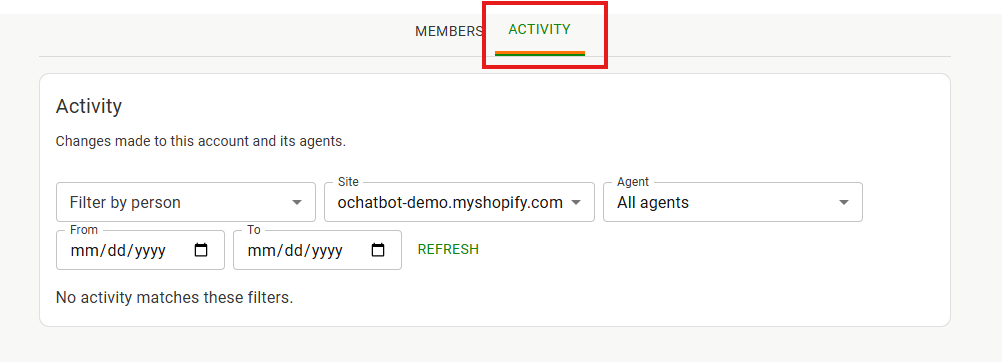
- See who changed what: open the Activity tab to view every change made to your AI agents, listed by team member.
FAQ
Can I give clients access, not just my staff? Yes. Anyone with an email address can be invited; give clients the Viewer role if they should only see reports and chat history.
Can I limit someone to one site? Yes. When inviting (or later, in Members), untick All sites and select only the sites they need.
Does each person get their own login? Yes. Each invitee sets their own password and two-factor authentication from the invitation email.
How do I find out who changed a chatbot setting? Check the Activity tab on the Team page. It lists changes to your AI agents by team member.