
Gain Insights. Engage Users. Grow Sales.
Order Status Lookup
Order Status Lookup lets your visitors check on their orders right inside the chat widget. They enter their order number plus one verification detail, and the AI returns the order’s status and tracking. You control which verification options are accepted, the wording shown at each step, and what happens after a lookup.
Where to find it
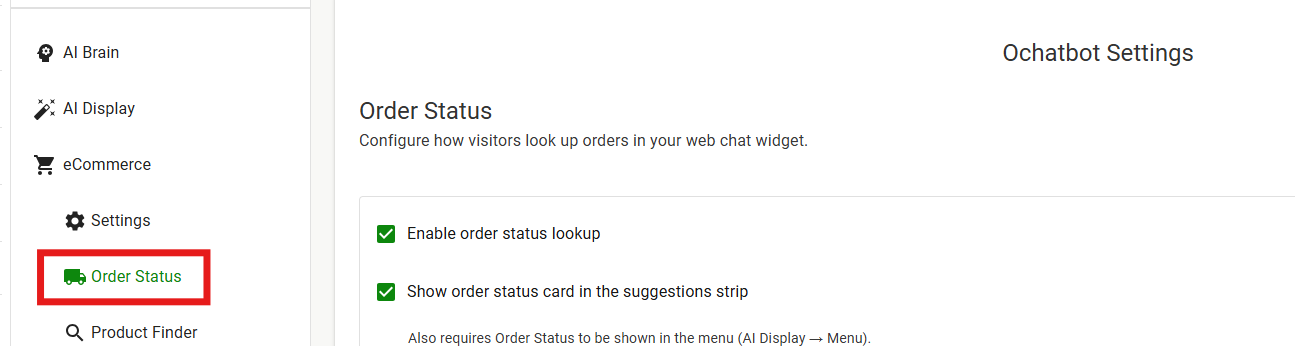
- In the left sidebar, go to eCommerce → Order Status.
Setup
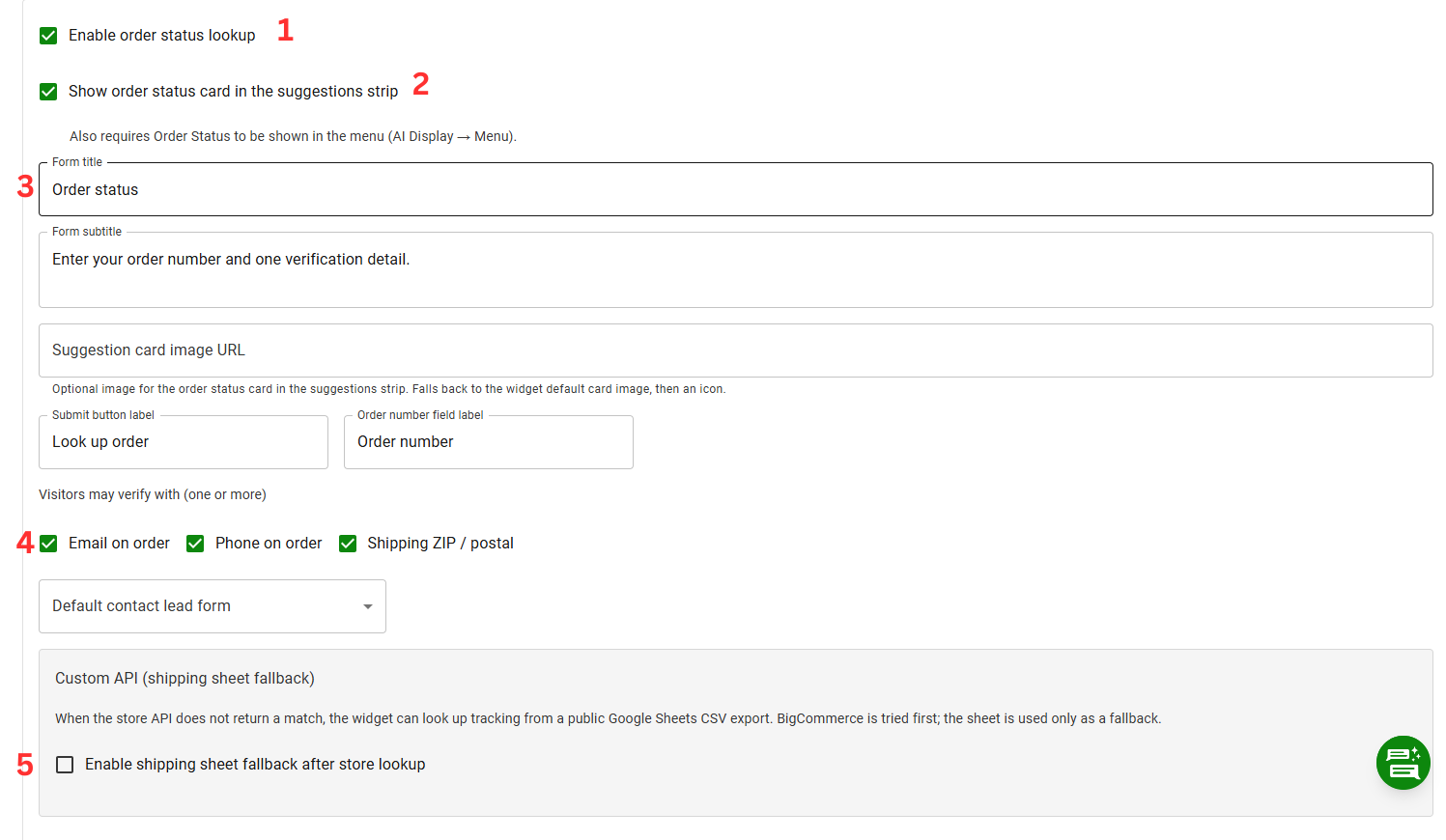
1. Enable order status lookup switches the feature on.
2. Show order status card in the suggestions strip adds an order-status card to the widget’s suggestions strip. This also requires Order Status to be shown in the menu (AI Display → Menu).
3. Form wording
These fields control what the visitor sees on the lookup form:
- Form title — the heading on the form (default: Order status).
- Form subtitle — the instruction below the title (default: Enter your order number and one verification detail.).
- Submit button label — the button that runs the lookup (default: Look up order).
- Order number field label — the label on the order number input (default: Order number).
- Suggestion card image URL — an optional image for the order status card in the suggestions strip. If left blank, it falls back to the widget’s default card image, and then to an icon.
4. How visitors verify
Visitors may verify with (one or more), choose which detail(s) a visitor can use to confirm the order is theirs:
- Email on order
- Phone on order
- Shipping ZIP / postal
Turning on more than one lets visitors look up their order a number of different ways — they only need to provide one of the enabled details. You can also pick the contact lead form used for follow-up from the dropdown below these options.
5. Custom API (shipping sheet fallback)
When the store API does not return a match, the widget can look up tracking from a public Google Sheets CSV export. Your store (e.g. BigCommerce, Shopify, and more) is always tried first, and the sheet is used only as a fallback.
Check Enable shipping sheet fallback after store lookup, then paste your Google Sheet CSV export URL. Publish or export the sheet as CSV (gviz out:csv). Order numbers must appear in the SO / INV column, and the TRACKING and SERVICE columns are used for the results.
6. Messages
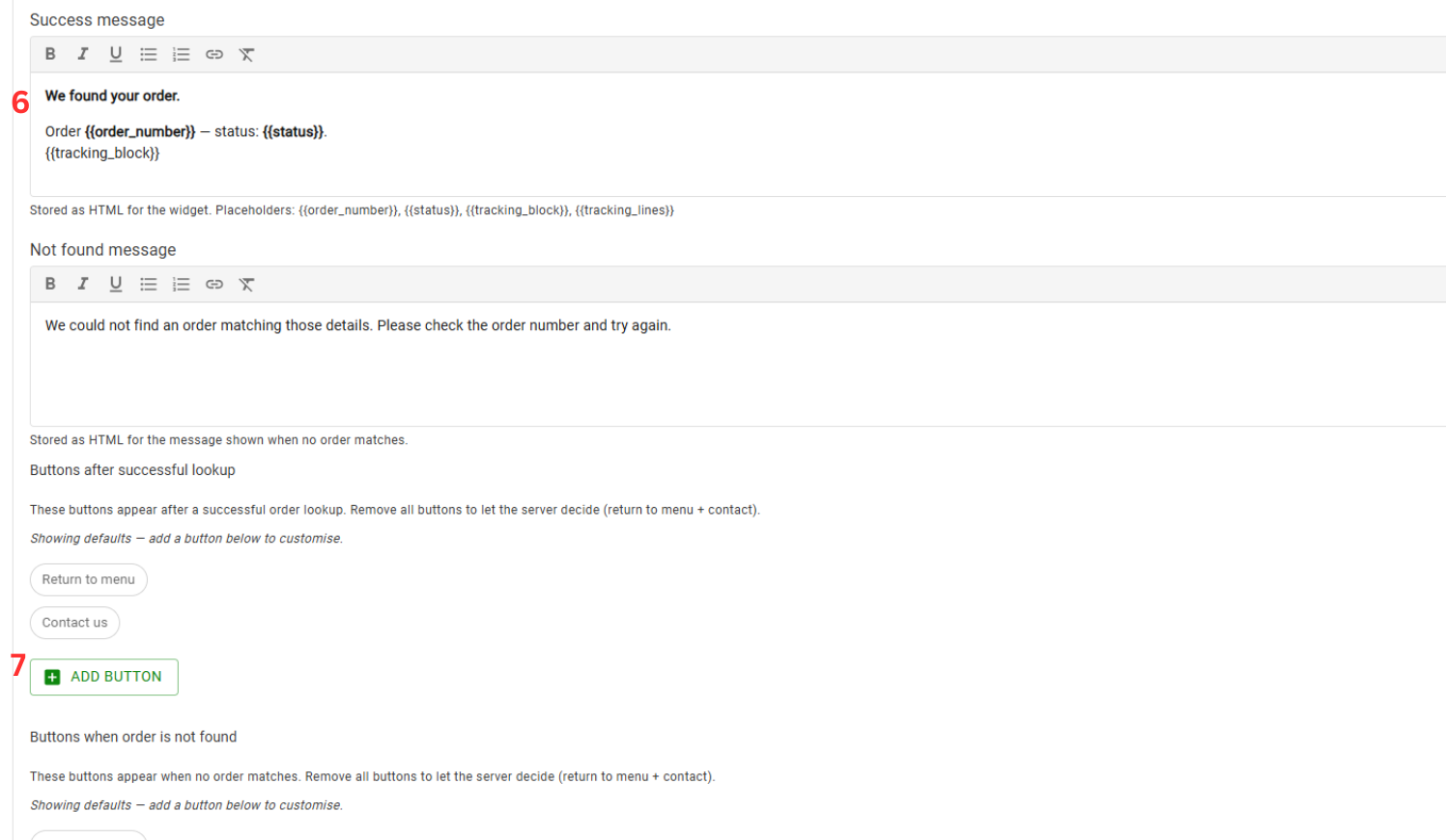
- Success message — shown when an order is found. Stored as HTML, and you can use placeholders, which are filled in automatically.
- Not found message — shown when no order matches. Stored as HTML (default: We could not find an order matching those details. Please check the order number and try again.).
7. Buttons after a lookup
You can customize the buttons a visitor sees after a lookup, in two situations:
- Buttons after successful lookup — shown when an order is found.
- Buttons when order is not found — shown when no order matches.
Both default to Return to menu and Contact us. Use Add button to customize them. If you remove all buttons, the server decides what to show (return to menu + contact).