
Support | Ochatbot
AI Display – Triggers
Selecting the correct time and approach you take to engage your visitors is key. The Triggers Tab allows you to tweak your timing and approach to attain best practices for user engagement.
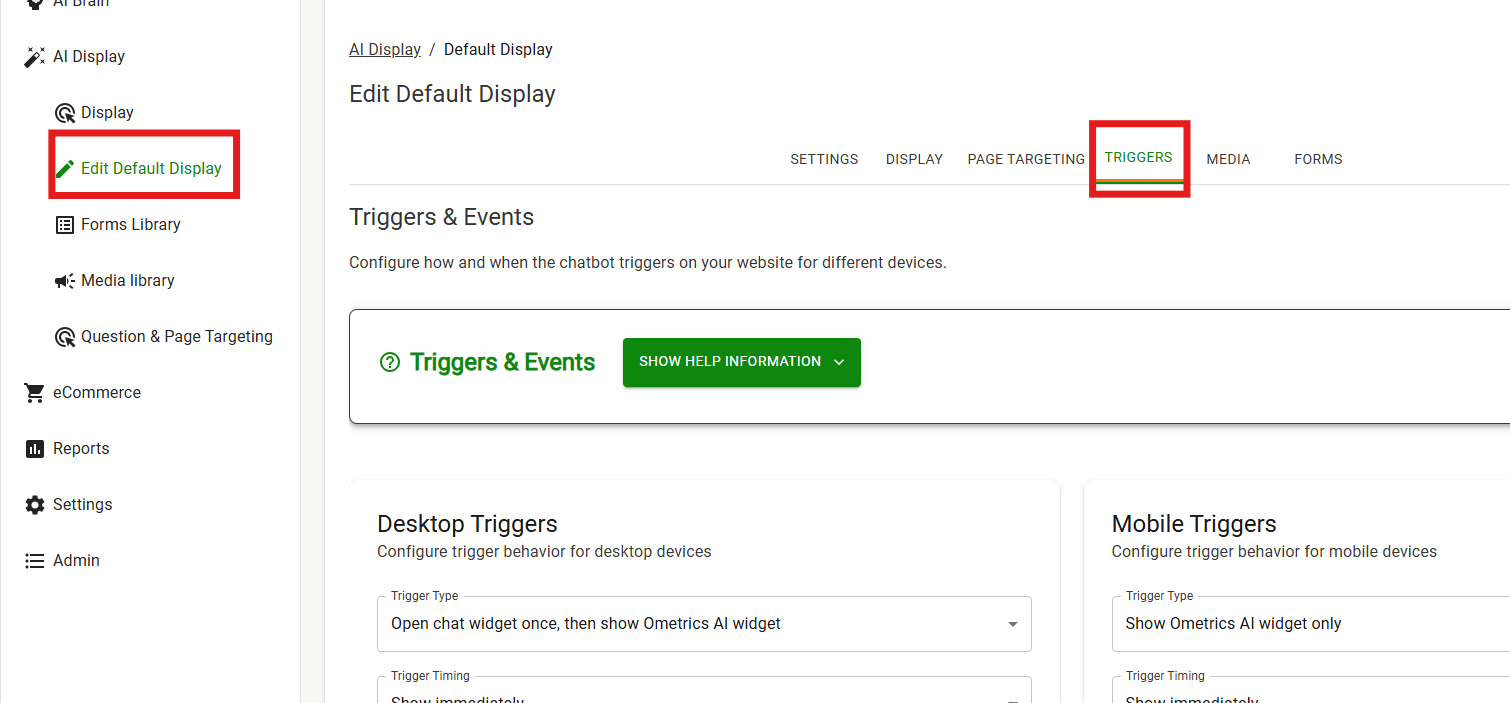
Locate Triggers under AI Display. You can configure Desktop and Mobile Triggers separately.
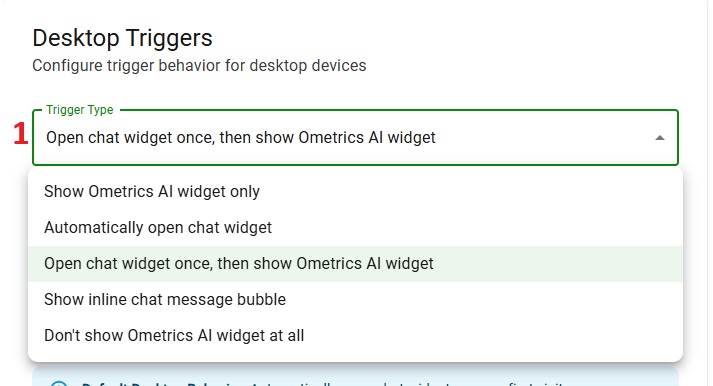
1. Trigger Type: Choose how you would like your desktop widget to behave when a visitor first comes to your website. The Ometrics AI widget refers to the round bubble containing the Ometrics AI logo. The Default Behavior is set so that the widget opens to the full AI display once for new visitors. If you’d prefer the widget not open, select “Show Ometrics AI Widget Only” as the widget type.
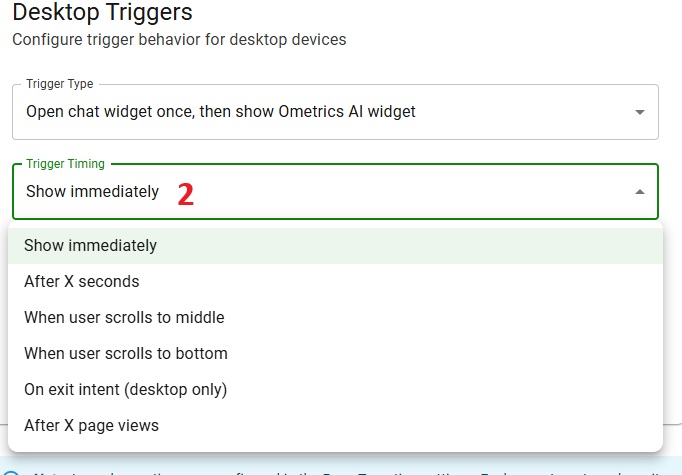
2. Trigger Timing: Choose when the chatbot window opens. We recommend delaying or disabling this on mobile because the chatbot can overtake the window.
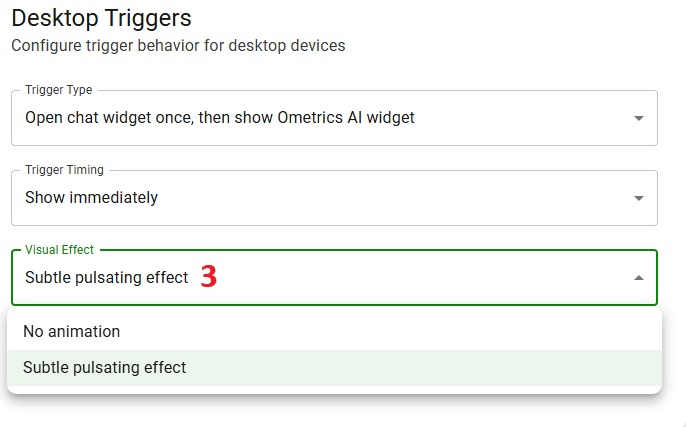
3. Visual Effect: Want to capture visitors’ attention? Add a subtle pulsing effect to the Ometrics AI Widget. This will alert users of the AI without being intrusive.
Frequently Asked Questions
What’s the recommended setting to trigger my Ochatbot?
It really depends! If you want to really try to engage your visitor the most then set it to trigger once then show floating button so they see it immediately. If you are using more in a support role then set it to show floating button so they engage at the point where they need help.
We Are Here to Help
Here are the different ways you can contact support:
- When logged in, click the "Contact Support" button. Your information will be autopopulated so just type in your question or comment.
- To create a ticket when not logged in email: [email protected]
- Call us during business hours: 8 a.m.-5 p.m. MST 800-700-8077.
- If outside the US: send an email to [email protected] and we will set up a meeting over Zoom.