
Gain Insights. Engage Users. Grow Sales.
Upsells & Cross-Sells
Upsells are a key feature within Ochatbot. They allow you to “build the basket” by choosing the products that get recommended to shoppers as they engage with the chatbot. Well-configured upsells help increase average order value and surface complementary items shoppers might otherwise miss.
This guide walks you through enabling upsells, choosing an upsell source, and configuring product-level and category- or tag-level recommendations.
Quick Reference
- Path to settings: Ochatbot Builder → Ecommerce → Settings → Enable Upsells.
- Automatic source: Plus plan only. Pulls related products from your ecommerce platform.
- Manual source: Available on all plans. Choose Manage Product Upsells or Manage Category/Tag Upsells.
- Product upsells: Attach specific recommendations to a single product.
- Category / Tag upsells: Attach recommendations to every product in a category or with a given tag.
Accessing the Upsells Settings
- Open the Ochatbot builder.
- In the left-hand navigation, expand Ecommerce and click Settings.
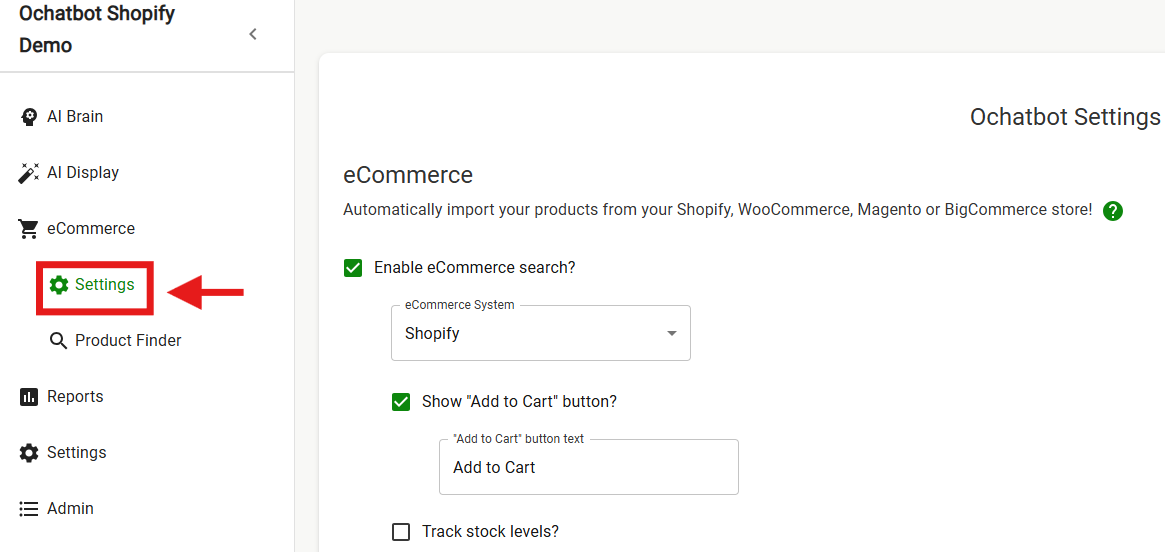
3. Scroll near the bottom of the page to find the Enable Upsells checkbox.
4. Check the box to turn the feature on. The upsell source options will appear below.
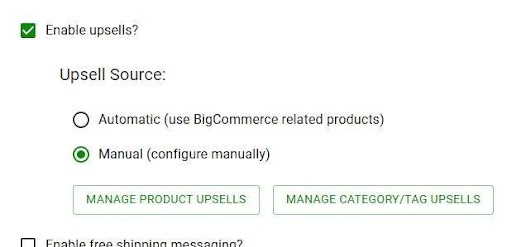
Choosing an Upsell Source
Once upsells are enabled, you can choose where Ochatbot pulls recommended products from. Two options are available depending on your plan:
Automatic (Plus plan only)
Ochatbot uses the related products already configured in your ecommerce platform (for example, BigCommerce or Shopify related products). This is the fastest way to get started if you have already set up related products on the back end.
Manual
You configure recommendations directly within Ochatbot. Manual mode is available on all plans and gives you two levels of control:
- Manage Product Upsells: set recommendations on a per-product basis.
- Manage Category / Tag Upsells: set recommendations that apply to every product in a category or with a given tag.
Managing Product Upsells
Use product upsells when you want recommendations tied to a specific item — for example, “anyone who adds the QuikSneakers to the cart should also see the The Varnish Protectat Spray.”
Step 1: Open the product list
From the Ecommerce settings page, click Manage Product Upsells. A modal opens listing every product in your catalog along with its SKU and Product ID. Use the search bar at the top to quickly locate a specific product.
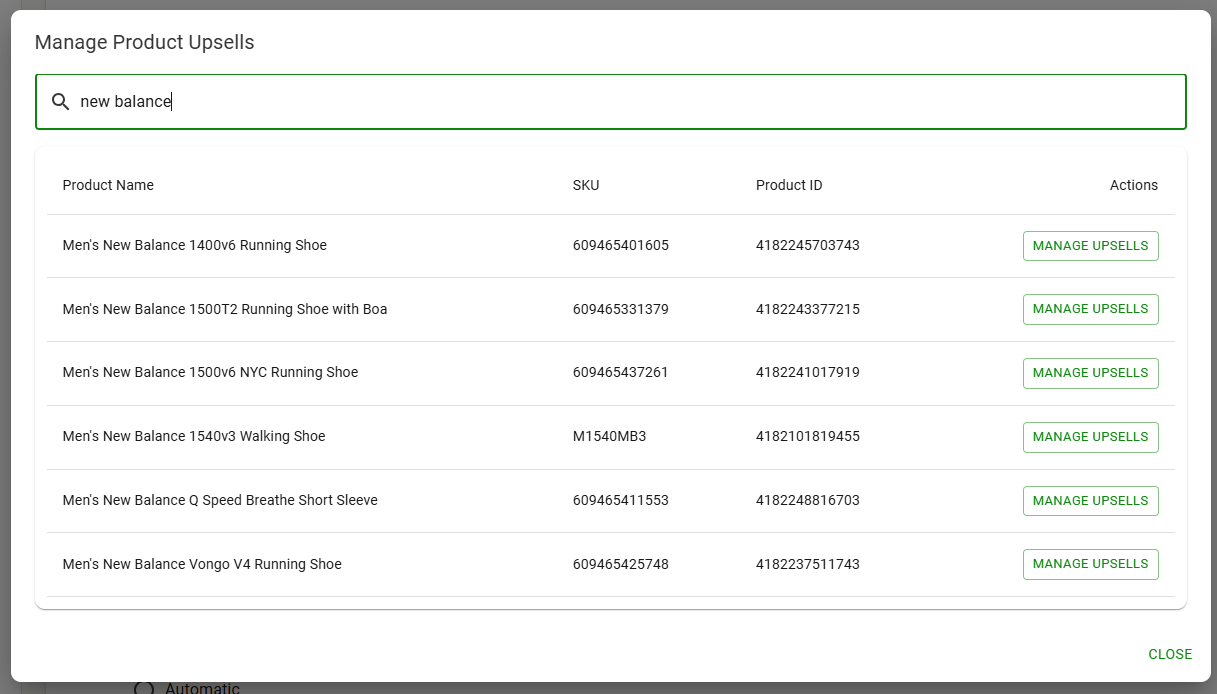
Step 2: Configure upsells for a product
- Find the product you want to attach upsells to.
- Under the Actions column, click Manage Upsells.
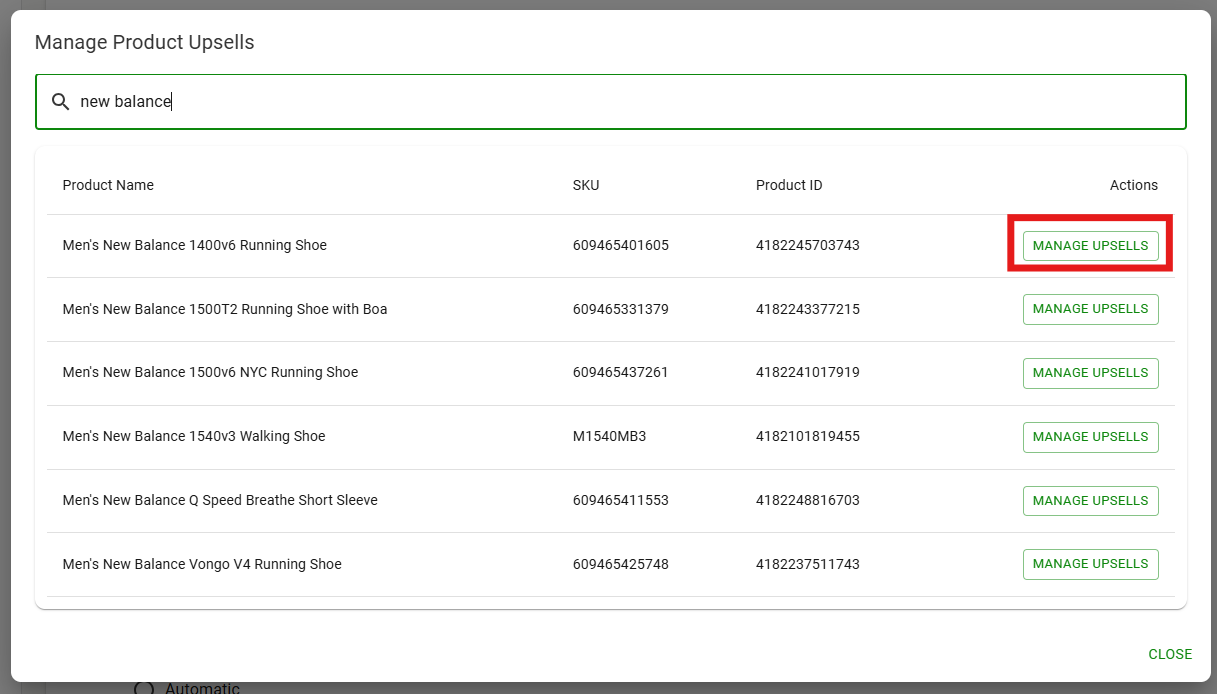
- The detail view will show any Current Upsells already configured for that product. If none have been set, you will see “No upsells configured for this product.”
- In the Add Upsell Product list below, click the Add button next to any product you want to recommend whenever the parent product is added to the cart.
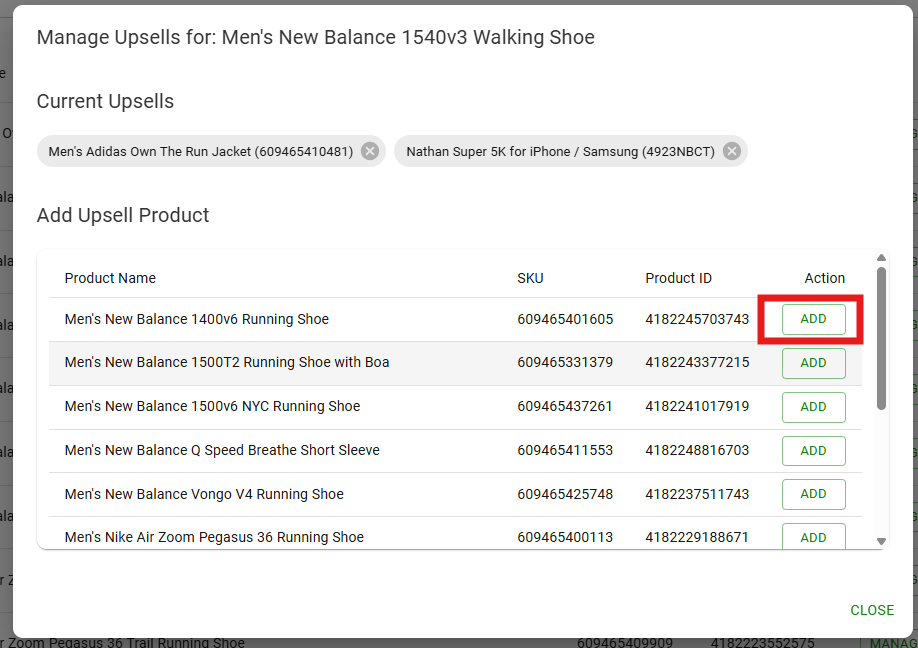
- Use the pagination controls at the bottom of the list to browse additional products.
- Click Close when finished. Your selections save as you add them.
Tip: Products you add here will always be recommended when a shopper adds the parent product to their cart, so choose items that genuinely complement the original purchase (accessories, consumables, warranties, or higher-tier alternatives).
Managing Category / Tag Upsells
Category and tag upsells let you set recommendations that apply broadly across many products at once, rather than configuring each item individually. This is ideal for catalog-wide rules like “anyone buying anything in Teleprompters should see Accessories.”
Step 1: Open the product list
From the Ecommerce settings page, click Manage Product Upsells. A modal opens listing every product in your catalog along with its SKU and Product ID. Use the search bar at the top to quickly locate a specific product.
Step 2: Select a base rule
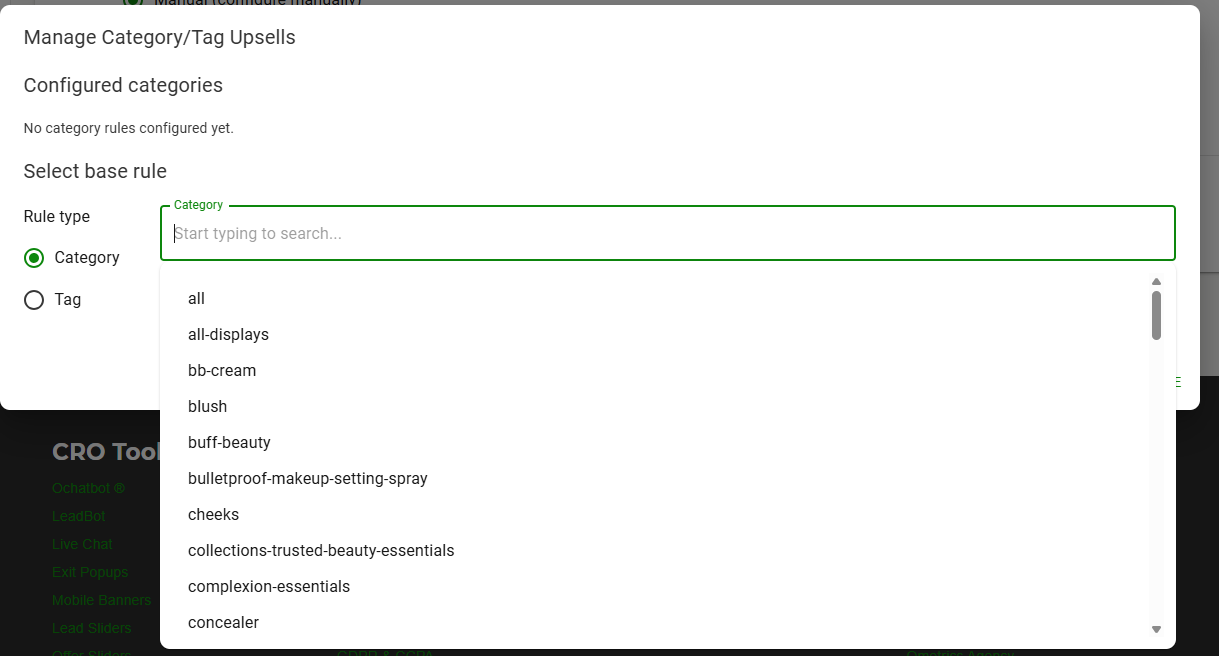
- Under Rule type, choose either Category or Tag.
- Click into the Category (or Tag) field and start typing to search, or pick from the dropdown list of available categories and tags pulled from your ecommerce platform.
- Select the category or tag you want the rule to apply to.
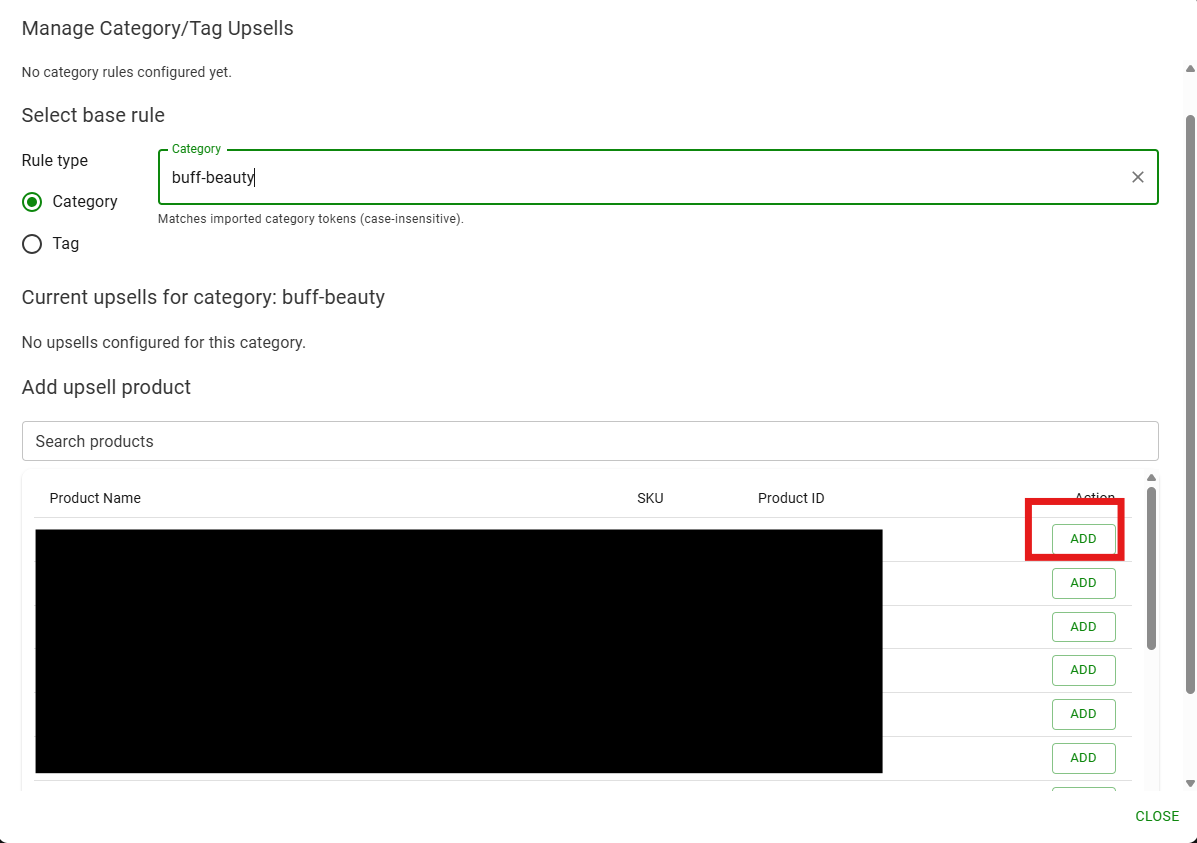
Step 3: Add upsell products to the rule
Once a base rule is selected, follow the same process as product upsells: choose the products that should be recommended whenever a shopper adds any item matching that category or tag to their cart. Click Add next to each product you want to include, then close the modal when finished.
Best Practices
- Lead with complementary items, not duplicates. If a shopper adds a camera, recommend a tripod — not another camera.
- Use category rules for broad coverage and product rules for high-value exceptions. The two work together; product-specific upsells override or supplement category defaults.
- Keep recommendation lists short and intentional. A handful of strong recommendations converts better than a long list of loosely related items.
- Review and refresh your upsells quarterly, especially after launching new SKUs, retiring old ones, or running promotions.