
Gain Insights. Engage Users. Grow Sales.
Display
The Display tab lets you configure how the AI appears on your site, whether as a full search interface, a button, or something more discreet. You can set up AI behavior for desktop and mobile.
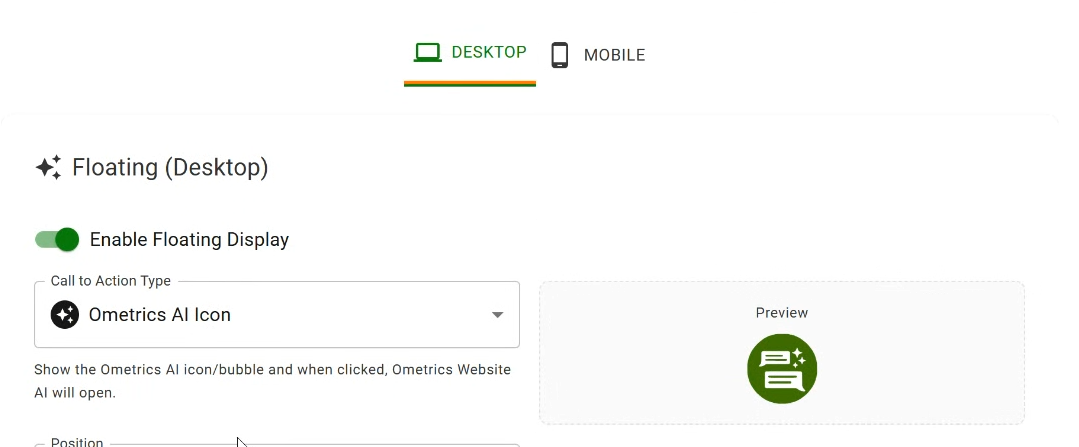
Some Terminology
Floating: A movable version of the Ometrics AI widget that remains visible as the user scrolls. It is positioned above the page content. This display type is useful for maintaining visibility and accessibility across the entire site.
In-Page Widget: A fixed version of the Ometrics AI widget that is embedded directly within the page layout. It stays in a defined position and appears as part of the page content, similar to a search bar or static chat box. This display type is ideal for targeted interactions on specific pages.
Both floating and in-page can be enabled at the same time.
Widget Types
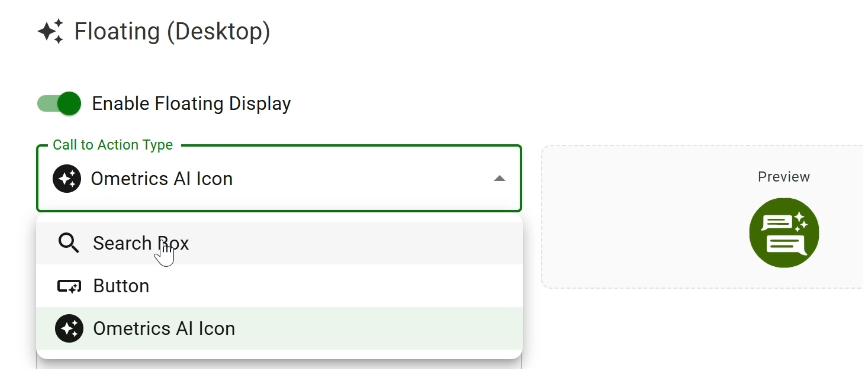
A widget defines how the Ometrics AI interface appears and behaves on a webpage. Each display type controls the widget’s placement, visibility, and level of user interaction. Selecting the right widget type ensures the AI integrates smoothly with the site’s layout and user experience.
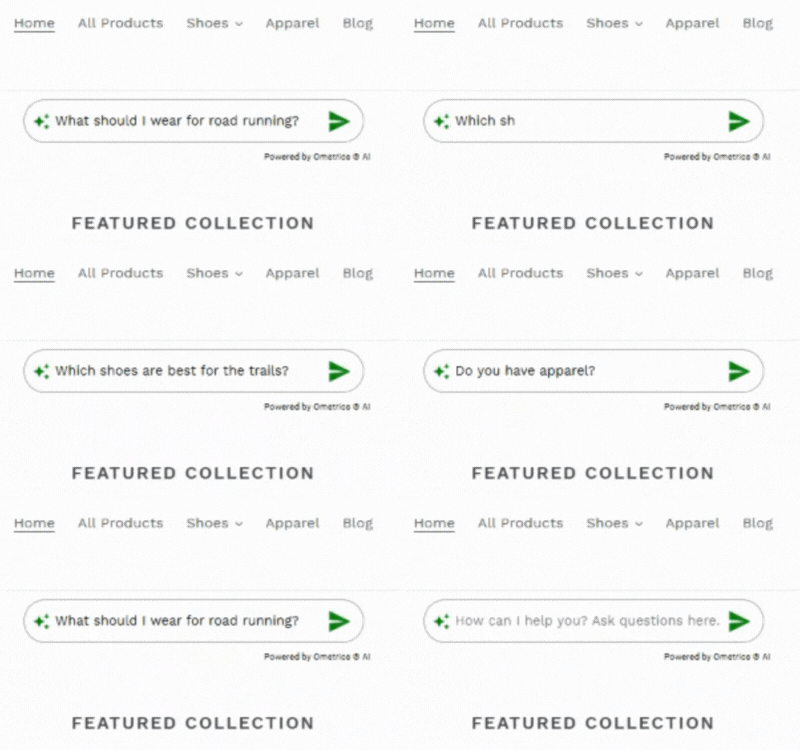
Search Box: A compact text input field with a traditional search bar appearance. Users can type questions or keywords to interact with Ometrics AI.
Button: A minimal display consisting of a single interactive button that launches the Ometrics AI interface when clicked. It provides a clean, low-profile option for pages with limited space or where user engagement should be optional until activated.
Ometrics AI Icon: A round floating icon, typically in the bottom right corner of the page. This widget provWhen selected, it opens the Ometrics AI chat or search interface. This display type ensures consistent visibility and quick access from any point on the site.
Display Mode
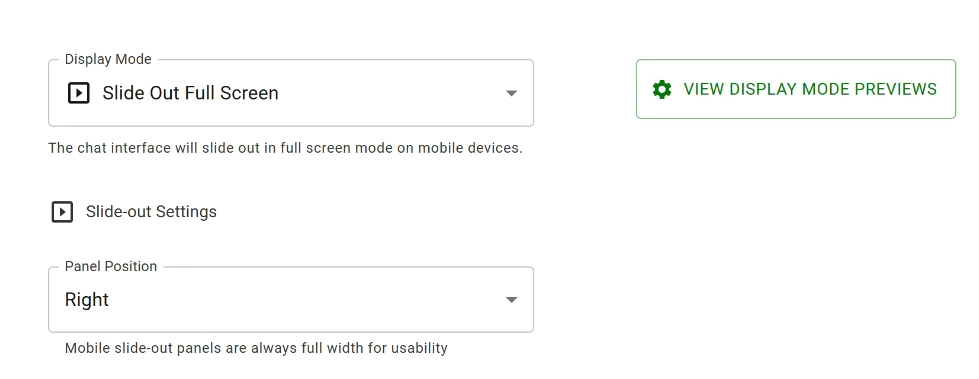
Display mode defines how Ometrics AI appears after a user activates the widget. It determines the layout, size, and functionality of the AI interface, including whether it opens as a slide-out panel, full-page overlay, or embedded panel. Choosing the right display mode helps optimize user interaction and ensures the AI fits seamlessly with the page design.
Slide-Out Panel: A panel that slides in from the side of the screen when the widget is activated. It allows users to interact with Ometrics AI while still seeing the page content behind it. Ideal for unobtrusive support and multitasking.
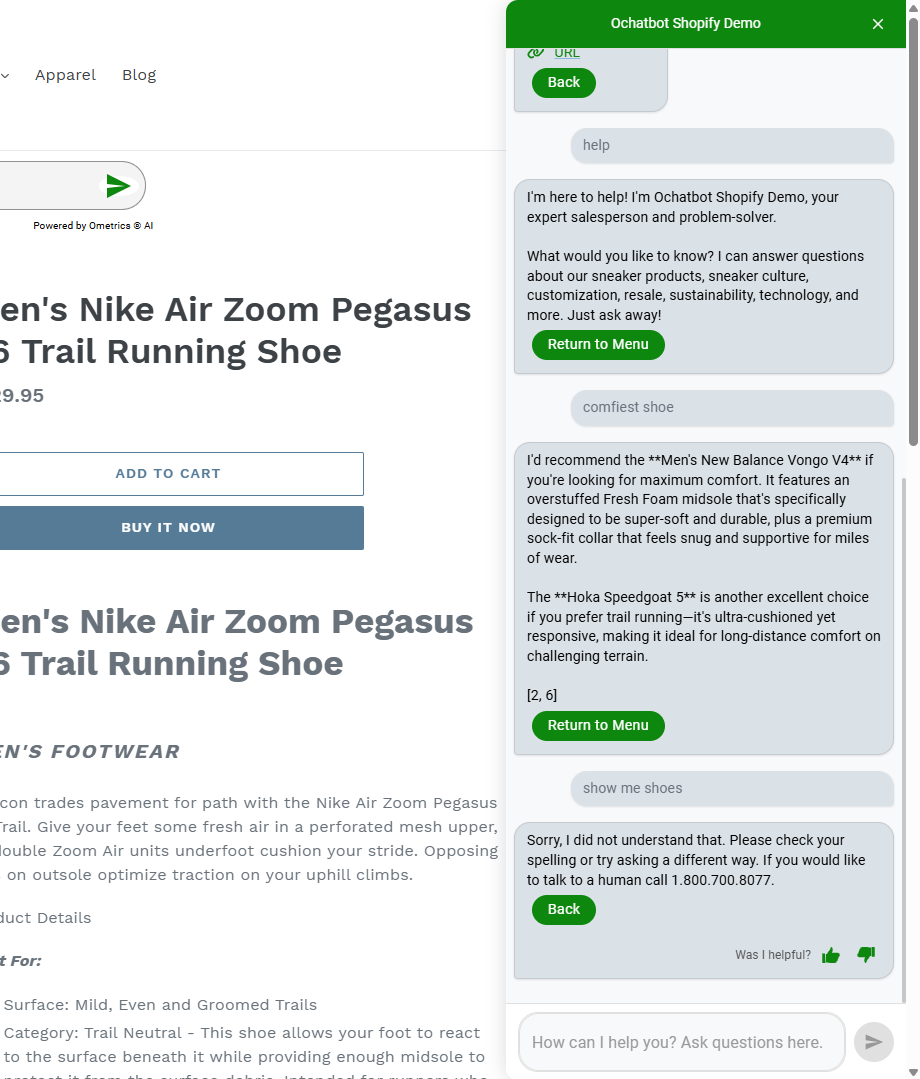
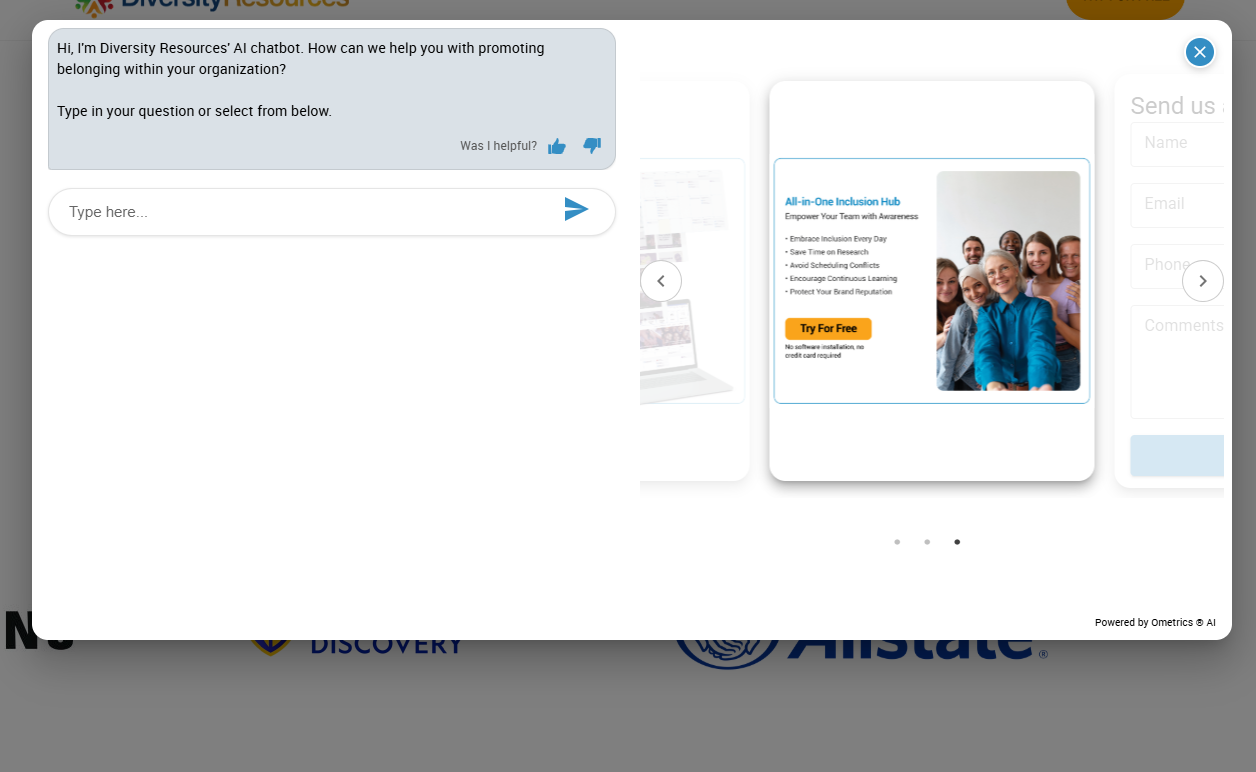
Overlay: A display that covers the page content when activated, drawing full attention to Ometrics AI.
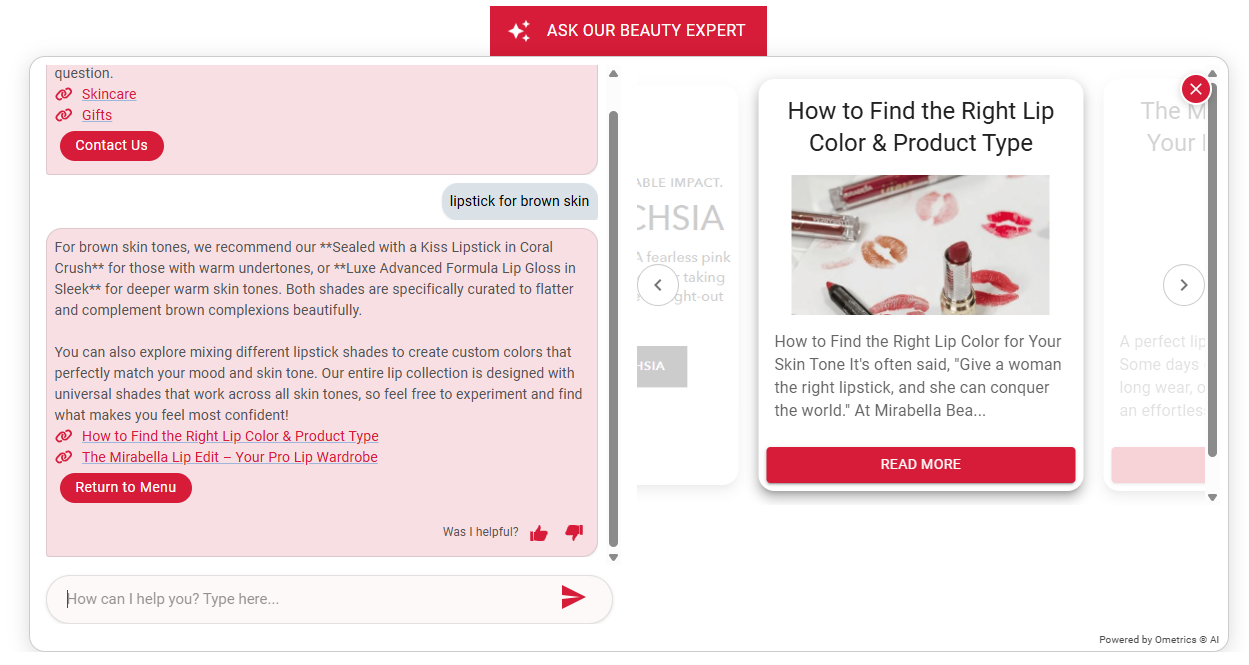
Expand: The AI interface is displayed directly within the page layout. When the widget is clicked, this display expands, pushing down page content. This mode is useful for integrating Ometrics AI seamlessly into specific page sections, like a support or search area.
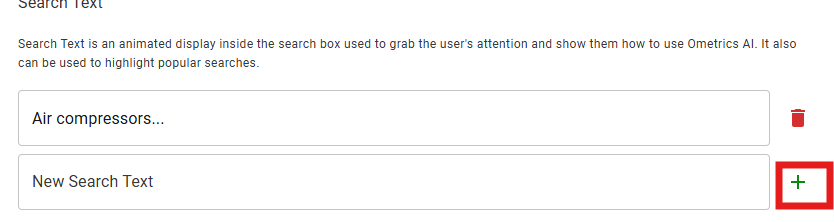
Search Text
To add Search Text, input your text in the box, then click the plus button to add the new text. Remember to hit the Save button at the bottom.
Where to Show Ometrics AI

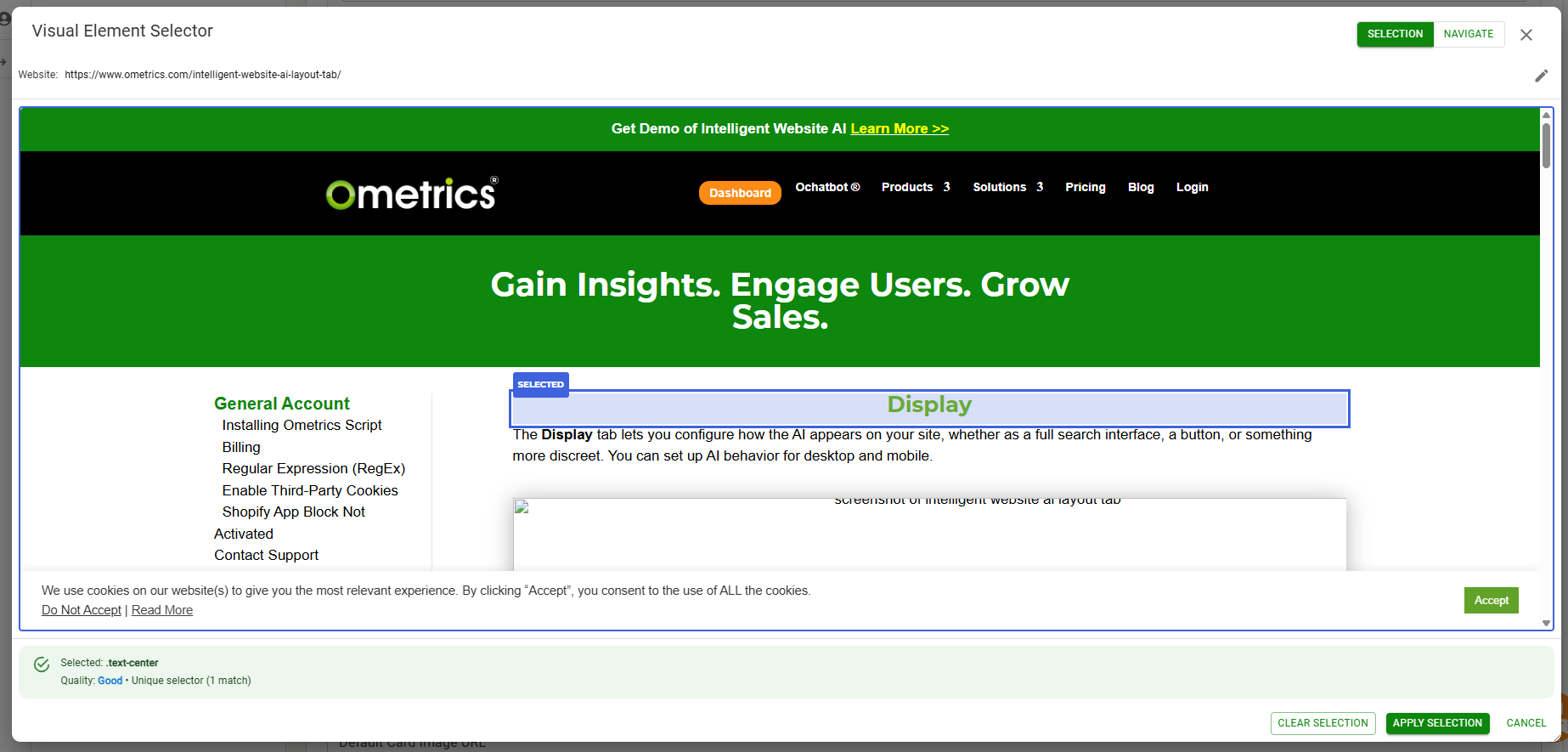

CSS selectors:
-
-
-
-
- # for ID (e.g., #main-content)
- . for class name (e.g., .main-container)
- Or an element type (e.g., footer, header)
- # for ID (e.g., #main-content)
-
-
-
Save Your Layout
Once your layout and display preferences are set, click Save Layout to apply changes.