
Support | Ochatbot
Intents
Intents are pre-written responses that are triggered by specific keyword inputs. These pre-written responses take priority over generative AI responses. Intents are best used when you need 100% control over the AI’s responses for important matters, such as specific policy info or medically-sensitive information.
Intents consist of listeners and actions. Listeners are specific word(s) that trigger an intent. You choose the listener based on what a user is most likely to type.
For example, if you need an intent for your return policy because you want the AI to only respond with the following: “We allow free returns on all products within 30-days,” then you will set the listener/keyword as return. You can input as many of these keywords as needed, and even use advanced RegEx (for people with more knowledge on coding).
Let’s walkthrough where to find your intents and how to set one up.
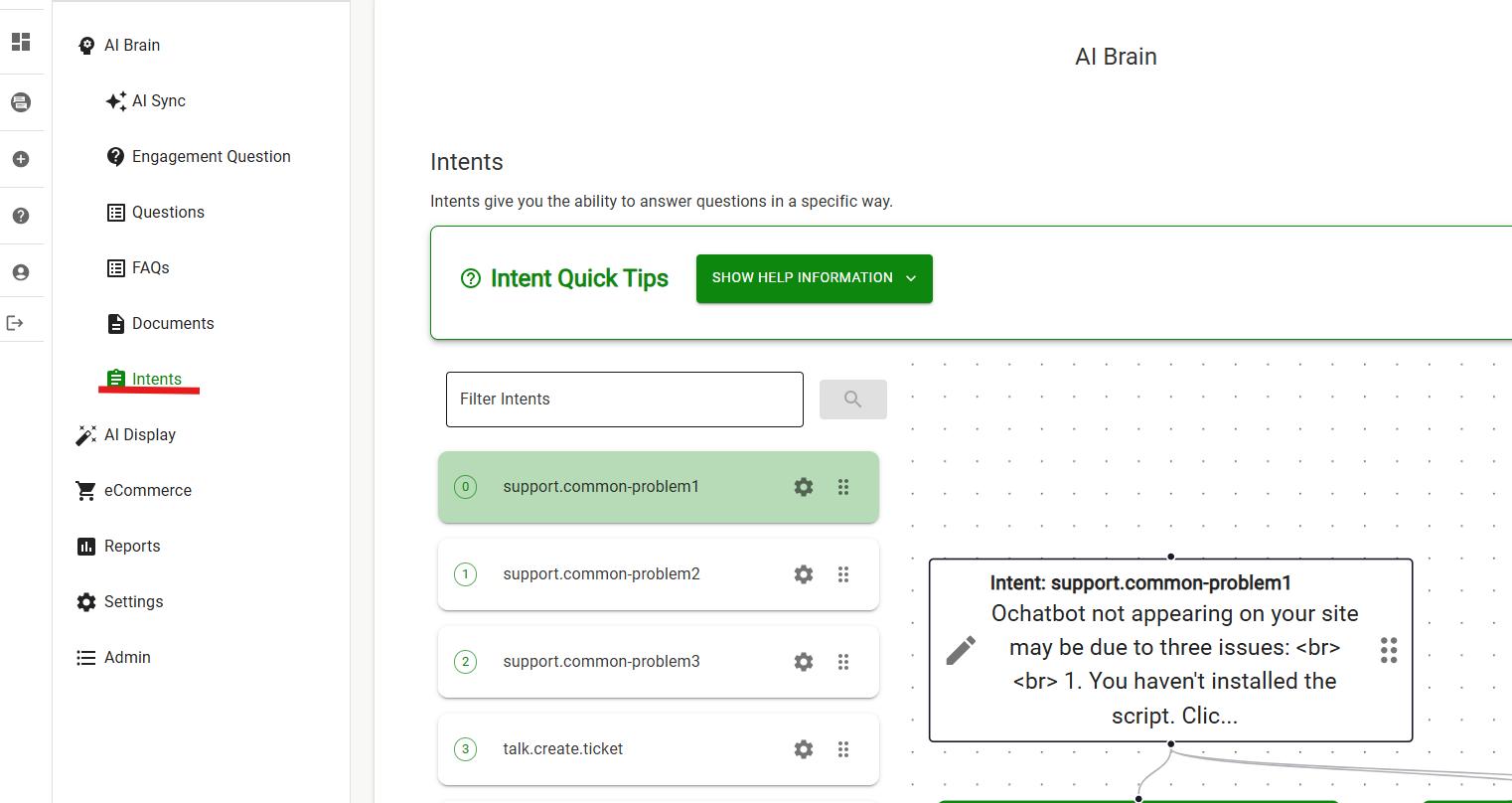
Intents can found under the AI Brain tab in your AI editor.
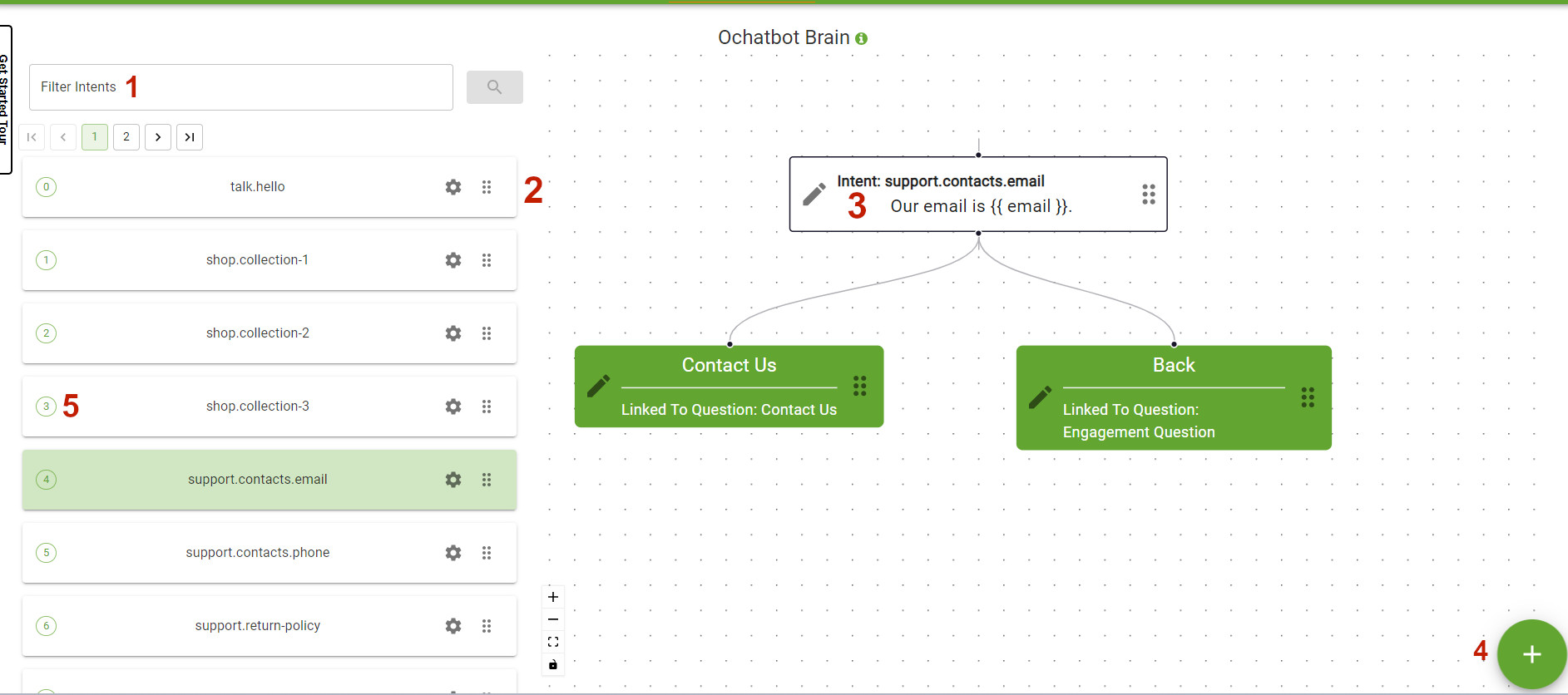
1. Filter Intents: Easily search for specific intents here.
2. Intent List: This lists all existing intents in order of priority. Your Ochatbot comes preloaded with common intents and listeners, but you may need to edit them to add specific details and listeners. You can edit an intent by selecting the gear button.
3. Intent Tree: Clicking on an intent from the list displays a tree view of the intent on the grid. You can also edit an element of the intent by clicking on the gray pen icon.
4. Add New Intent: Click the green plus button to add a new intent. New intents created will appear at the buttom of the intent list.
5. Intent Order: To change the Intent Order, or the priority of the intent, click the number and edit the number. Because multiple intents can trigger for similar keywords or phrases, raising or lowering the Intent Order causes the Ochatbot to prioritize what response it will use.
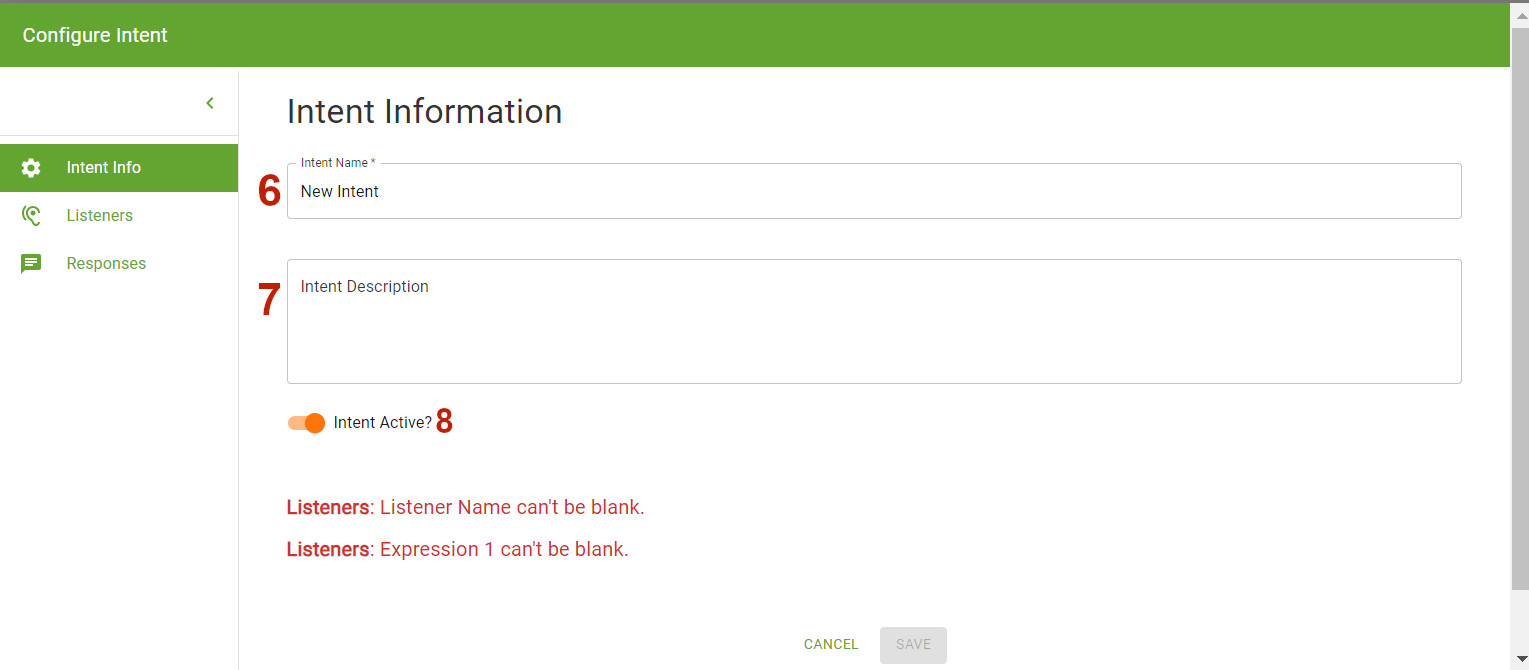
6. Intent Name: Name your intent here to easily search for it later but be sure to keep organized by sticking close to a naming scheme you are comfortable with. ex. product.shoes
7. Intent Description: Add a short note for yourself and anyone else who will be managing the bot after you build it.
8. Intent Active?: Toggle this button back and forth to activate the intent. Inactive intents will not appear if users type a question.
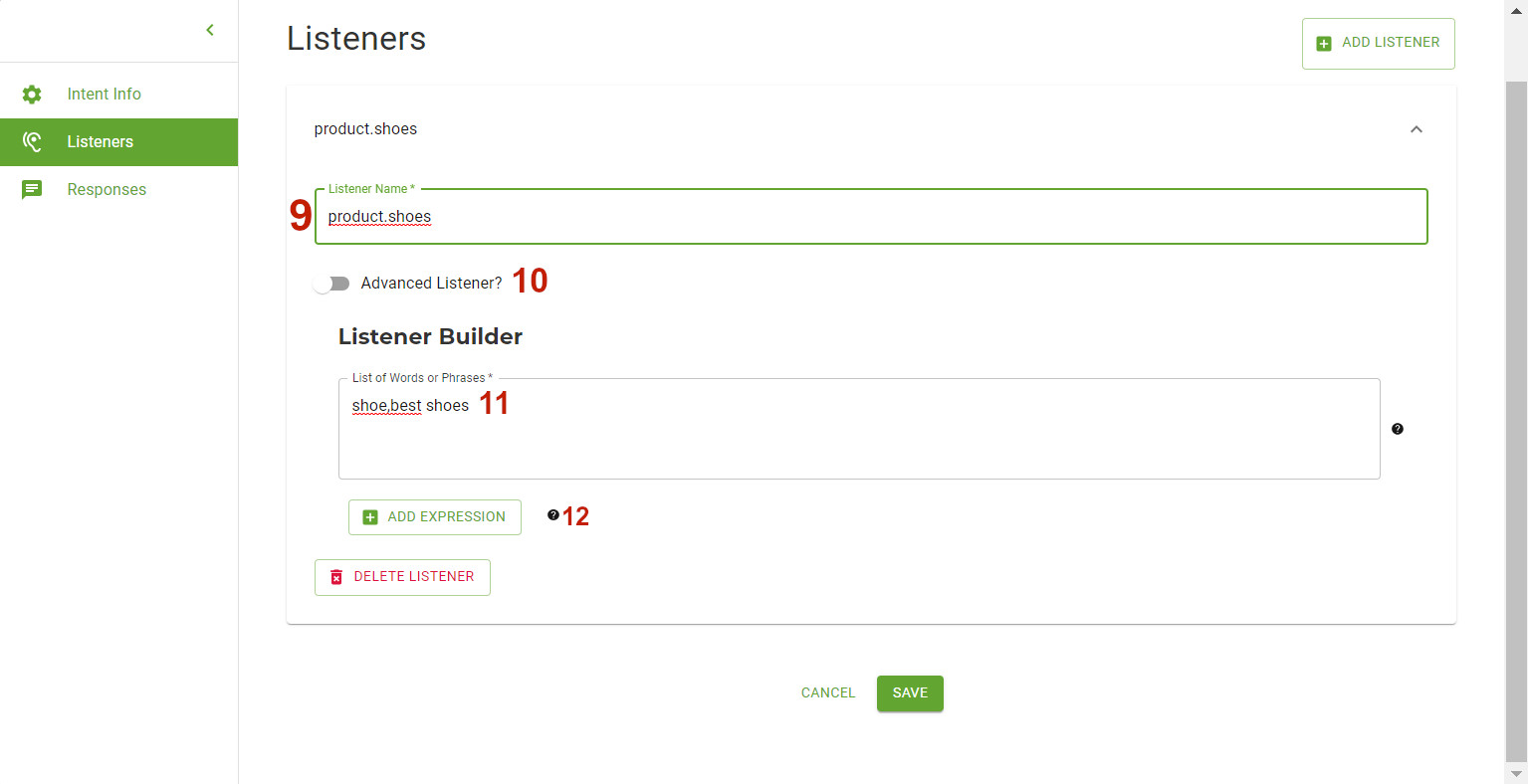
9. Listener Name: Name your Listener here to easily search for it later but be sure to keep organized by sticking close to a naming scheme you are comfortable with. ex. product.shoes
10. Advanced Listener?: Click here to toggle to the advanced listener builder, where you can use Regular Expression (RegEx) to build more precise intents.
11. Listener Builder: This is where you will enter the keywords or phrases that will trigger the intent for the user. For instance, if you’re building an intent for bestselling hats, you might enter hats,bestselling hats,best-selling hats and so on. This is a comma-separated list.
12. Add Expression: If additional words or phrasesare required to make a match, add them in another expression.
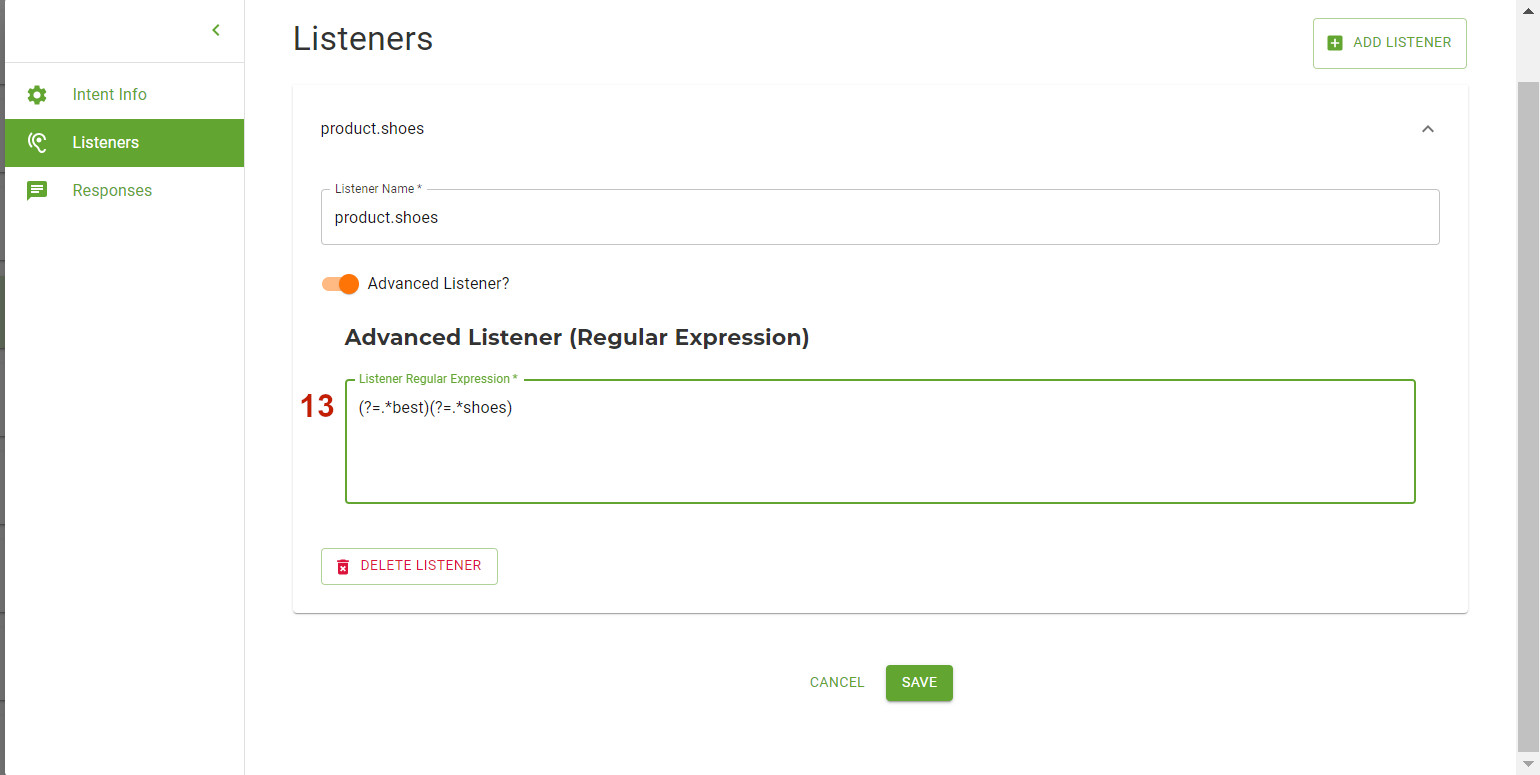
13. Advanced Listener: To build more advanced listeners, use RegEx. This can be complicated, so look into our tutorial on RegEx for more information. Remember that when your bot goes live, you will be able to see if users aren’t getting the responses you want them to get. Check your Fallback Report regularly to adjust your listeners accordingly. Learn more about AI Concepts here.
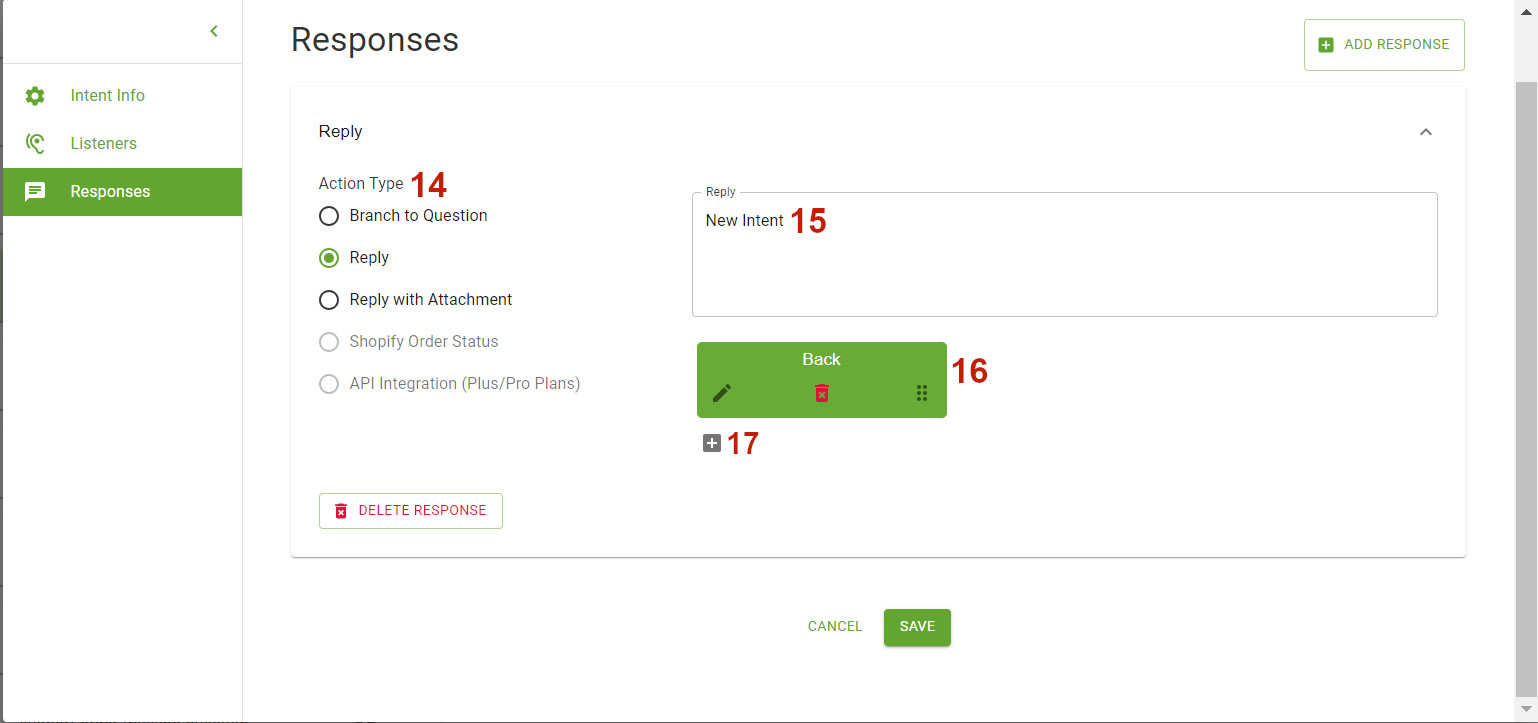
14. Action Type: The action is how Ochatbot will respond when the user types something that matches the listener. There are three options in the basic editor:
- Branch to question allows you to link to an existing question or lead form you have created.
- Reply lets you give a simple response in text form, whether it be an answer to a question or a clarifying question.
- Reply with Attachment allows you to combine a text response with an embedded image or video.
15. Repy: Add your Ochatbot’s response here.
16. Back Button: All questions and intents automatically include a back button that links to the default question. To change where the back button goes, click the gray pen to open the editor.
17. Add Button: Buttons allow you to trigger another intent, trigger a question, trigger javascript code, or link to a webpage (URL).
We Are Here to Help
Here are the different ways you can contact support:
- When logged in, click the "Contact Support" button. Your information will be autopopulated so just type in your question or comment.
- To create a ticket when not logged in email: [email protected]
- Call us during business hours: 8 a.m.-5 p.m. MST 800-700-8077.
- If outside the US: send an email to [email protected] and we will set up a meeting over Zoom.